
Quick answer: UploadBlog is best understood as two things at once: a publishing platform where you can create and upload blog posts, and the generic act of uploading a blog post to any website. If you mean the platform, you sign up, open the editor, write or paste your post, add a featured image, set a category and tags, preview, and publish. If you mean WordPress or another site, the same core steps apply, but the buttons and SEO controls differ. This guide covers both, compares the main platforms, and gives you a pre-publish checklist so your post looks professional the first time.
What Does “UploadBlog” Actually Mean?
Search results for “uploadblog” mix three different meanings, and that confusion causes most of the bad advice on this topic. Sorting them out first saves you from following the wrong tutorial.
| Meaning | What it is | Who it suits |
|---|---|---|
| UploadBlog the platform | A web publishing service (associated with uploadblog.io and uploadblog.com guides) where you create an account and publish posts through its own editor | Writers who want a quick place to publish without setting up a website |
| “Upload a blog” as an action | The generic process of putting a finished article onto any website, most often WordPress | Anyone publishing on their own site or a client’s site |
| Uploadblog.de | A separate German sports-media site that happens to share part of the name | Sports readers, not general bloggers — ignore it for publishing purposes |
The practical rule: if a tutorial mentions a dashboard, a “new post” button, and a featured image panel but never mentions hosting, domains, or plugins, it is describing a hosted platform. If it mentions a hosting provider, themes, and plugins, it is describing WordPress. The steps below keep the two apart.
UploadBlog Platform: What You Get
On a hosted publishing platform, the company runs the servers, the design, and the software. You only handle the content. That trade is the whole appeal — and the whole limit.
What it handles for you
- No setup: no hosting purchase, no domain configuration, no theme installation.
- Built-in editor: title field, formatting tools, image upload, categories, and tags in one place.
- Instant publishing: a post can go from draft to live in minutes.
- Basic SEO fields: guides for the platform describe adding a meta description and placing the keyword in the opening paragraph, a subheading, and the conclusion.
What you give up
- Control: you cannot install plugins, change the underlying design freely, or move the audience elsewhere as easily as with your own site.
- Distribution: unlike Medium, UploadBlog has no large built-in reader network, so traffic depends on search engines, social sharing, and direct links.
- Monetization options: platform guides describe monetization as limited compared with a self-hosted site, where you control ads, products, and subscriptions.
Before you invest heavily in any hosted platform, run the checks in the verification section near the end of this article. Platforms change their rules, and a quick check today prevents a locked-out account tomorrow.
How to Upload a Blog on UploadBlog: Step by Step
These steps follow the platform’s own published guides. Exact labels can vary slightly as the interface is updated, but the sequence is stable.
- Log in. Sign in with your registered email and password to reach your dashboard. If you do not have an account yet, register first and confirm your email — an unconfirmed account is the most common reason a first post fails to save.
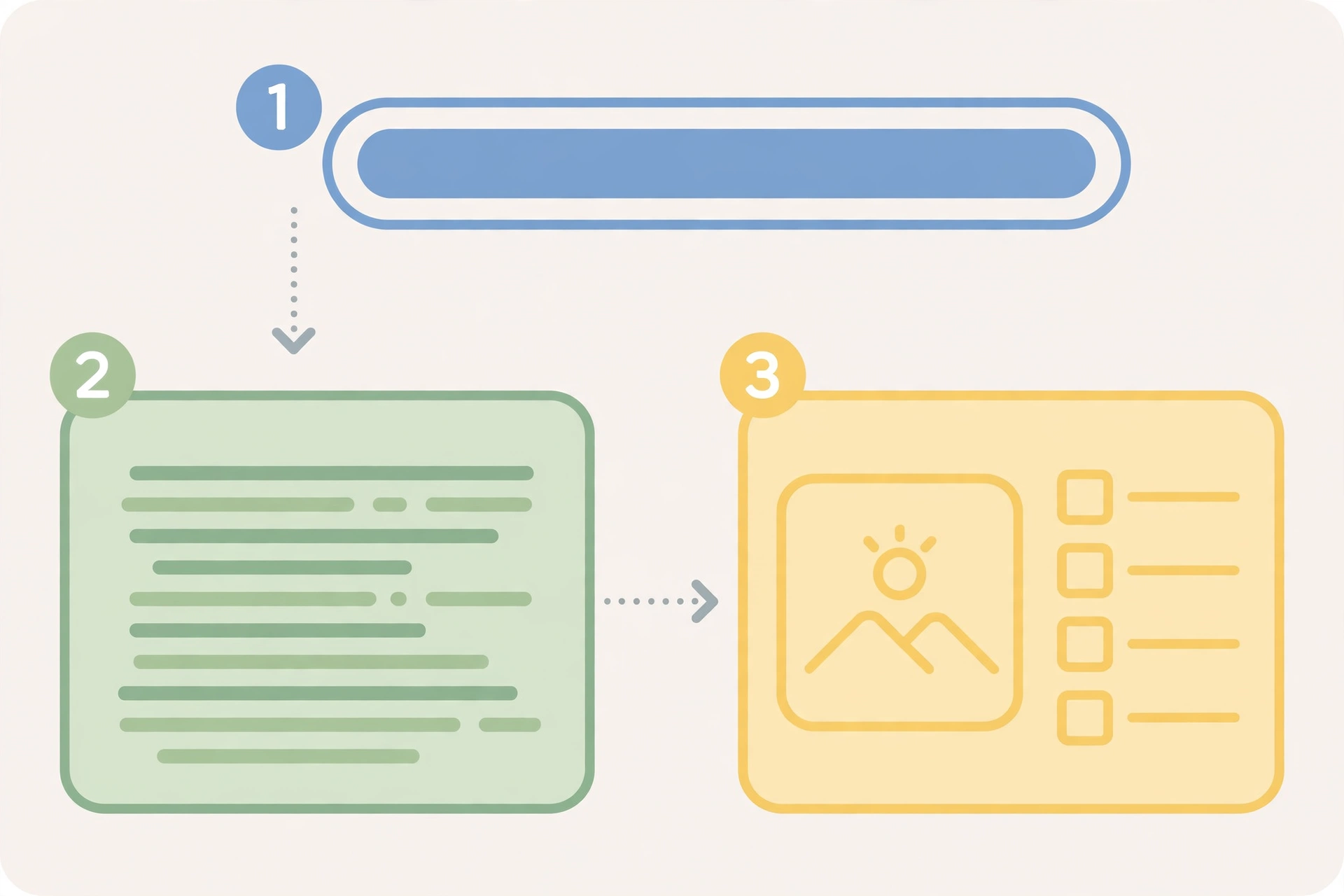
- Open the editor. Choose “new post” or “create blog” from the content area. This opens the editor where the whole post is built.
- Write a clear title. Put the topic in plain words first. The title is the first thing readers and search engines see, so avoid clever wordplay that hides the subject.
- Add the body content. Write directly in the editor or paste a pre-written draft. Then break long paragraphs into shorter ones and use bold, italics, and underline sparingly for emphasis only.
- Structure with headings. Use subheadings to divide the post into sections, and use bullet points, numbered lists, and tables where they make scanning easier. A wall of unbroken text is the fastest way to lose a reader.
- Add SEO elements. Write a meta description of roughly 150–160 characters, place the main keyword naturally in the first paragraph, include it in at least one subheading, and repeat it a few times in the body without forcing it.
- Upload a featured image. Find the featured image section, usually in the sidebar or near the top of the editor, and upload a relevant image. Add alt text that describes the image in plain words.
- Choose a category and tags. Pick the single most relevant category and add descriptive tags. Good categorization helps readers find the post and helps the platform index it.
- Preview before publishing. Check the preview exactly as a reader will see it: formatting, image placement, heading order, and links. Fix anything that looks even slightly off — readers judge the whole post by its rough edges.
- Publish and verify. Click publish, then open the live post in a fresh browser tab and confirm the title, images, and formatting all appear correctly.
How to Upload a Blog on WordPress
WordPress powers a large share of the web, and most “how to upload a blog” tutorials are really WordPress tutorials. The flow is similar, but you get far more control — and a few extra steps.
- Log in to the dashboard. Go to your site’s wp-admin login page and sign in with your WordPress username and password.
- Go to Posts, then Add New. This opens the block editor with a title field at the top and an empty body below.
- Enter the title and body. Type the title, then write or paste the content. Use the block inserter to add headings, lists, tables, images, and other blocks where needed.
- Add images. Upload images through the media library, set alt text for each, and choose one as the featured image, which represents the post in lists and previews.
- Set categories and tags. Tick the most relevant category (never leave a post uncategorized if your site has a category system) and add a handful of specific tags.
- Add SEO details. If your site uses an SEO plugin such as Rank Math or Yoast, fill in the SEO title, meta description, and focus keyword before publishing.
- Preview, then publish. Preview the post, check it on mobile width as well as desktop, and only then click Publish. After publishing, open the live URL and confirm everything renders.
| Step | UploadBlog platform | WordPress (self-hosted) |
|---|---|---|
| Setup before first post | Register an account | Hosting, domain, WordPress install, theme |
| Editor | Single built-in editor | Block editor, plus page builders if installed |
| Featured image | Sidebar or top panel upload | Media library, set in the post sidebar |
| SEO controls | Basic fields | Full control via SEO plugins, schema, redirects |
| Design control | Limited to platform options | Themes, custom CSS, full layout control |
| Moving your content away | Platform-dependent export | Full export of posts, media, and database |
| Ongoing cost | Free to start on most hosted platforms | Hosting and domain costs, typically a few dollars a month |
UploadBlog vs. the Alternatives
Choosing a platform is really choosing what you are willing to trade. This comparison uses the platform guides’ own feature descriptions, so treat it as a starting point and verify current plans before committing.
| Platform | Cost to start | SEO control | Built-in audience | Best for |
|---|---|---|---|---|
| UploadBlog | Free | Basic (meta, tags) | No | Quick publishing, portfolios |
| Medium | Free | Very limited | Yes, large | Writers who want readers fast |
| WordPress.org | Hosting cost | Full (plugins, schema) | No | Serious, long-term blogs |
| Blogspot | Free | Limited | No | Hobby blogs |
| Substack | Free | Limited | Growing | Newsletter-first writers |
Three decision rules follow from that table. First, if discovery matters more than control, pick the platform with readers — Medium or Substack. Second, if you plan to earn from the blog or build a brand over years, WordPress repays its setup cost many times over. Third, if you just need a clean place to publish a few posts quickly, a hosted platform like UploadBlog is a reasonable, low-commitment choice.
Pre-Publish Checklist: Run This Every Time
Most publishing mistakes are not writing mistakes — they are checklist mistakes. Run this list on every post, on any platform, before you click publish.
| Check | What “done” looks like | Common failure |
|---|---|---|
| Title | Clear topic, readable in one breath | Clever title that hides the subject |
| Opening paragraph | Answers the reader’s question directly | Three paragraphs of throat-clearing |
| Headings | Sections in logical order, keyword in one subheading | One giant section or random heading jumps |
| Images | Featured image set, alt text on every image | Missing featured image, broken image links |
| Links | Every link opens the intended page | Links pasted from a draft pointing nowhere |
| Meta description | About 150–160 characters, topic up front | Empty or auto-generated snippet |
| Category and tags | One relevant category, specific tags | “Uncategorized” or twenty vague tags |
| Preview | Checked on desktop and mobile widths | Published from the editor without previewing |
| Live verification | Opened the live URL after publishing | Assumed publish meant everything worked |
Common Upload Problems and Fixes
| Problem | Likely cause | Fix |
|---|---|---|
| Post will not save | Session expired or unconfirmed account | Copy your text to a safe file first, log in again, confirm your email, then paste and save |
| Images do not appear | Upload interrupted or unsupported format | Re-upload in JPG, PNG, or WebP; keep files under a few megabytes |
| Formatting collapses after pasting | Hidden formatting carried over from Word or Docs | Paste as plain text, then reapply headings, bold, and lists in the editor |
| Post is live but looks broken on mobile | Wide tables or oversized images | Preview at mobile width, shrink images, simplify wide tables |
| Post does not appear in search | Too new, or the platform has not indexed it yet | Wait, share the link, and check again in a few days; indexing is never instant |
| Wrong category or missing tags | Rushed final step | Edit the post, fix the category and tags, and update — most platforms allow editing after publishing |
One habit prevents most of these: always keep a local copy of your post text before you paste it anywhere. Editors time out, sessions expire, and browsers crash. A local copy turns a disaster into a thirty-second re-paste.
Verify Before You Commit to a Platform
Publishing platforms change ownership, rules, and pricing. Before you publish a large body of work on any hosted service, run these five checks yourself:
- Open the live site and confirm it loads, looks maintained, and shows recent posts — not a parked or expired page.
- Read the terms and privacy pages for who owns your content and how it can be used or removed.
- Test the export path — can you download your posts, and in what format?
- Check the contact route — is there a working contact page or support channel if your account has a problem?
- Publish one test post first and confirm it renders, shares, and edits correctly before migrating your main work.
These checks take ten minutes and they apply to every platform, not just UploadBlog. They are also the checks most tutorials skip, which is why so many writers discover platform limits only after publishing dozens of posts.
UploadBlog FAQs
Is UploadBlog free?
Platform guides describe it as free to start, with no hosting or installation cost. Always confirm the current plan on the live site before assuming any feature is included.
Is UploadBlog the same as WordPress?
No. WordPress is software you install on your own hosting, with themes and plugins. UploadBlog is a hosted service where the platform runs the software and you only supply content.
Can I upload a blog post with images and video?
Yes — platform guides describe image uploads as standard, and video upload is listed as supported in platform comparisons. Keep files reasonably sized so pages load quickly.
Do I need to know code to upload a blog?
No. Both hosted platforms and WordPress’s block editor are designed for writers without coding. Code only becomes relevant if you want custom designs or advanced features.
How long does it take to upload a blog post?
The mechanical steps take minutes once the post is written. Writing, editing, images, and the pre-publish checklist are where the real time goes — budget for those, not for the clicking.
Why is my post not showing in search results?
New posts take time to be discovered and indexed, and a new platform profile has no authority yet. Share the link, keep publishing, and recheck after several days rather than expecting instant ranking.
Should I use UploadBlog or start my own WordPress site?
Use a hosted platform if you want to publish quickly with no setup. Start a WordPress site if you want full control, full SEO options, and an asset you fully own. Many writers do both: quick posts on a platform, serious work on their own site.
Writing a Post Worth Uploading
Uploading is the easy part. The harder question is whether the post deserves to be published at all. A post that answers one clear question, in order, with evidence the reader can check, will outperform a longer post that wanders. Use this structure for almost any how-to or explainer post.
Start with the answer, then earn the detail
Open with a direct answer in the first paragraph. Readers who searched for a specific question decide within seconds whether to stay, and search engines also favour pages that answer quickly. After the answer, explain the background, the steps, and the exceptions — in that order. Detail that comes after the answer feels helpful; detail that delays the answer feels like padding.
One idea per section
Give each section a heading that states its point, not just its topic. “Choose a category and tags” tells the reader what to do; “Categories” only names a subject. When a section grows past about 300 words, split it. Short sections are easier to scan, easier to link to, and easier to update later.
Use tables for comparisons, lists for sequences
Tables beat paragraphs whenever the reader is comparing options — platforms, prices, features, or pros and cons. Numbered lists beat paragraphs for steps that must happen in order. Bullet lists beat paragraphs for options with no required order. Choosing the right container is a writing decision, not decoration, and it is one of the fastest ways to make a post feel professional.
Link to something useful, not just to yourself
Internal links to your own related posts help readers go deeper, and they help search engines understand your site. But a post with no outside references at all looks thin. Where a claim depends on a platform’s own documentation or a public guide, say so plainly and point readers to the source they can check. Honest sourcing builds more trust than confident-sounding assertions.
Edit for removal, not addition
After a first draft, do one pass whose only job is deletion: cut repeated points, cut throat-clearing openers, cut adjectives that carry no information. Most drafts lose ten to twenty percent of their words this way and get better with every cut. If a sentence does not change what the reader knows or does, it does not belong in the post.
After Publishing: What to Do Next
Publishing is the middle of the job, not the end. A short distribution routine gives each post a fair chance to be found.
- Verify the live page. Open the published URL, check the title, images, and formatting, and confirm the page loads at a reasonable speed.
- Share it once, well. Share the link where your actual readers are, with one sentence saying who the post helps — not just the title pasted without context.
- Link it from related posts. When you publish your next post on a connected topic, link back to this one where it genuinely helps the reader.
- Watch for comments and corrections. Reader corrections are free editing. Fix real errors promptly and note the fix; it builds credibility.
- Revisit after a month. Check whether the post still describes the platform accurately. Interfaces change, and an outdated tutorial quietly loses trust.
- Do not chase instant ranking. A new post on a new topic needs time to be discovered. Judge a post after weeks of steady work, not after a day of refreshing statistics.
That routine takes about fifteen minutes per post and it compounds: every post becomes easier to find, and every new post strengthens the older ones it links to.